How to Add Christmas Lights to a Photo: Portraits, Pets & Houses
Add Christmas lights to your photo with warm-white strings, colorful bulbs or fairy-light glow. Choose the right subject, review the image quote and check the edit before sharing.
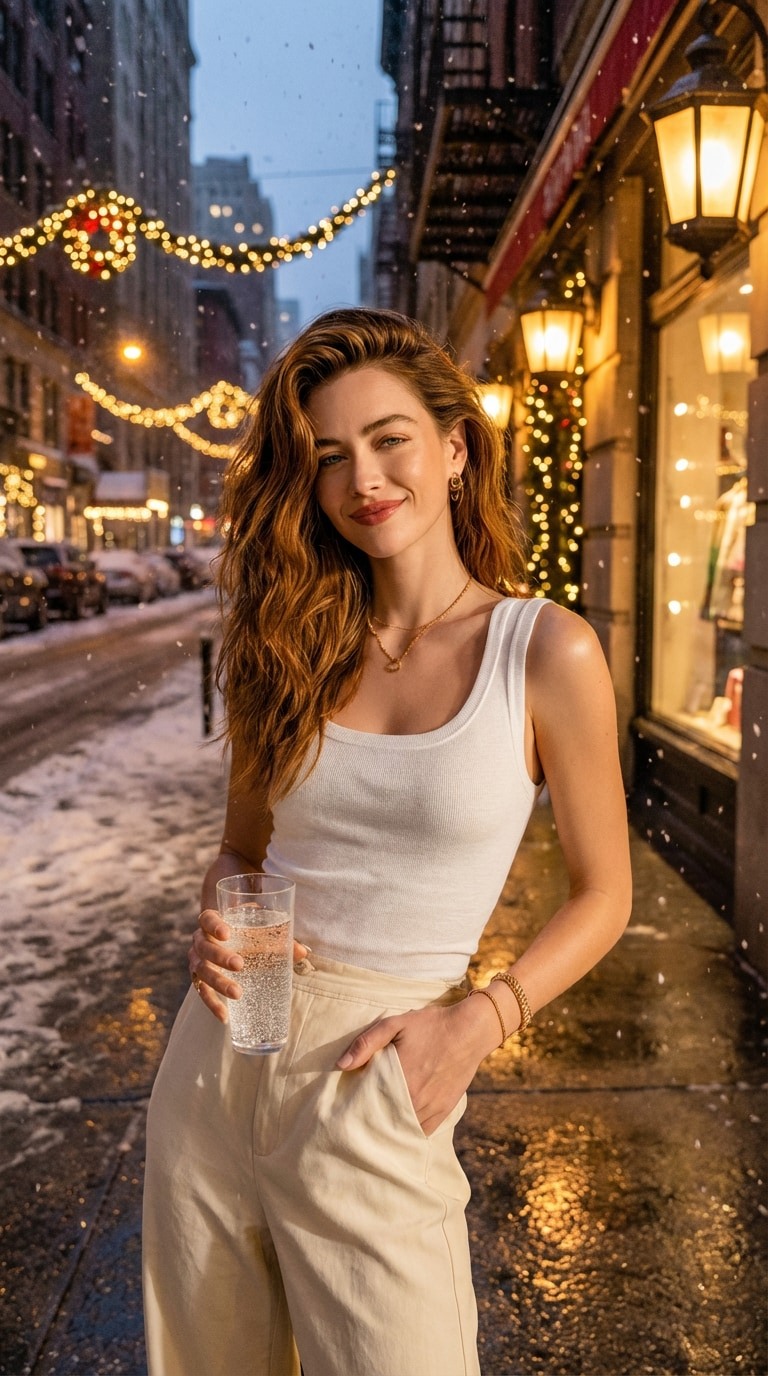
To add Christmas lights to a photo, open GenBay’s Christmas lights photo editor, upload your portrait, pet or house photo, and choose Warm white, Colorful bulbs or Fairy-light glow. The result is one edited digital image. No prompt writing or physical lights are needed.
Which Christmas light effect should I choose?
Choose the look before generating. These are fixed styles, rather than controls for drawing individual wires or specifying an exact bulb count.
| Style | Useful for | What to inspect |
|---|---|---|
| Warm white | A classic holiday portrait or softly lit home. | Faces, rooflines and the balance between the lights and the original photo. |
| Colorful bulbs | A playful pet picture or a colorful seasonal post. | Fur markings, object edges and excessive color spill. |
| Fairy-light glow | A softer portrait or atmospheric background. | Whether the glow covers important facial or scene details. |
1. Prepare a portrait, pet or house photo
Use a clear JPG, PNG or WebP up to 4 MB. Keep the face, pet or building unobstructed, with enough room around the area where lights should appear. An evenly exposed photo gives the model more detail than a very dark or heavily filtered image.
Choose Person if a consenting adult appears, Pet for a cat or dog, or Place / object for an empty room, building or object. Do not select an empty-scene category to avoid the adult-photo requirements.
2. Choose the style, image size and shape
Upload your photo in the editor, select the matching subject and light style, and confirm that you have permission to use the photo. People shown must be consenting adults; children and public figures are not supported.
The current image choices are 1K / 5 credits or 2K / 10 credits, with square or portrait composition. A larger preset does not guarantee better likeness. Each generation produces one still image, not an animated light sequence.
3. Review the quote and start once
Upload the required photos and confirm permission, then use your own email to buy a credit pack. Confirmed payment reserves the credits for this creation and starts generation automatically. Existing members can sign in to use their balance. Use the same purchase email to securely access and download your result; we guide you through verification when it is ready.The image’s credit cost and the credit pack’s purchase price are different. Current one-time packs: $1.99 / 40 credits · $5.99 / 200 credits · $8.99 / 300 credits · $14.99 / 600 credits · $27.99 / 1200 credits. No subscription; see Pricing for the active offer and applicable checkout tax. Unspent credits stay in the shared GenBay balance.
4. Check the edited photo before sharing
Inspect faces, paws, windows, lettering, architecture and object edges. The edit aims to preserve your subject and perspective, but AI may alter details. There is no measured completion-time guarantee for this recipe. Follow the saved task instead of submitting another payment while waiting.
A house-lighting image is a visual idea, not an electrical plan, shopping list or installation specification. A confirmed technical failure returns the task’s charged credits; serious quality concerns can be raised through support, under the refund policy.
Need a Christmas dance or gingerbread picture instead?
AI Elf Dance makes a moving Christmas scene from one adult or pet photo. AI Gingerbread Generator transforms a portrait, pet or house into cookie art. These are separate effects, with their own output and quote.