Best Photos for AI Dance Videos: Dime Dime Baby & Rumpelstiltskin
Choose a reference photo for Dime Dime Baby, Rumpelstiltskin AI or Charme Dance AI. Check framing, face clarity, hands and permissions before photo-to-dance generation.
The best starting photo for an AI dance video shows one consenting adult clearly, in even light, with enough body and clothing visible for the chosen performance. Check the effect’s reference before choosing the crop: a headshot, a full-body dance and a two-person duet require different preparation.
GenBay’s prepared effects supply the motion and scene. A photo guides appearance; it does not let you choose a new choreography, song or camera sequence. These checks help you judge your input, but do not guarantee accurate faces, hands or movement.
Which AI dance trend are you making?
Start with the exact version. The following are different photo-to-video effects, rather than interchangeable names for one generic AI dance generator:
| Effect | Performance to check | Photo preparation |
|---|---|---|
| Dime Dime Baby Dance | The Bby Wow Guy / Quince party version | Show one adult’s face, full body and outfit where possible. |
| Rumpelstiltskin AI | The barn tiptoe performance | Keep the body and clothing visible; inspect the tiptoe reference before choosing. |
| Charme Dance AI | The Baile Charme / Seu Zé night-party version | Use one clear adult photo, with visible body and outfit rather than a tiny distant face. |
| Hotel Lobby AI | A shared-microphone rap duet | Use two separate adult photos, one for each side. Read the two-photo tutorial. |
The current Dime Dime Baby option is 10 seconds / 200 credits; each effect shows its own current quote. Do not assume that every video has the same duration, framing or cost.
1. Check the face before the background
Open the original photo at a comfortable viewing size. Can you see the eyes, nose and outline of the mouth? Avoid strong blur, sunglasses, hands covering the face, extreme profile views and heavy face filters. Choose an evenly lit image instead of a screenshot with a small, compressed face.
No particular background makes a result certain. A simple, uncluttered image is easier to inspect, while good facial detail remains important when the effect turns or moves the subject.
2. Leave room for the body and outfit
For a full-body performance, choose a photo that actually shows those details. Avoid cutting off the head or hiding the body behind a table. A tight crop forces the model to supply more missing appearance information; enlarging a blurry crop does not recover it.
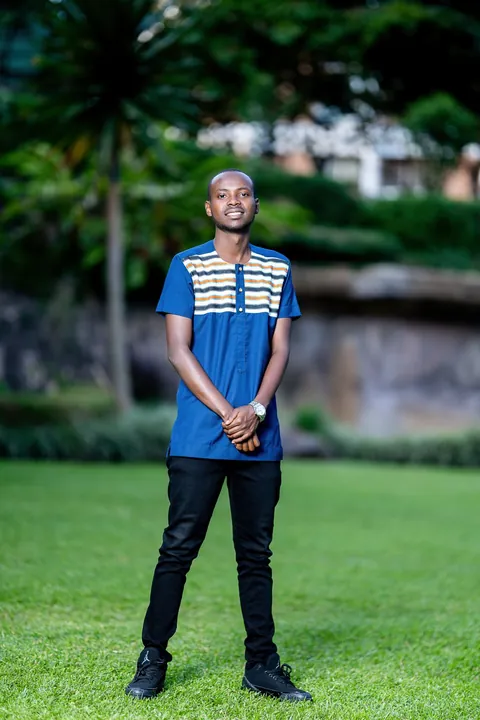
The source reference still controls the scene and movement. If you want to change the dance itself, choose a different supported effect; a different source photo does not rewrite the template.
3. Use the right number and kind of subjects
- Use one adult for the single-person dance effects. Avoid group photos and children.
- For Hotel Lobby, inspect the separate left and right upload previews. One group image is not this workflow’s two-photo input.
- Use your own image or an adult’s image with permission. Do not use public figures or strangers without consent.
- For cats and dogs, choose Bad Times AI for Pets instead of a human dance slot.
Current uploads accept JPG, PNG and WebP up to 4 MB per image. Do not rename an unsupported file extension; export a supported format and inspect it before uploading.
Why do AI dance videos change faces or hands?
Generation synthesizes moving frames from a still appearance reference and a prepared performance. Occlusion, turns and missing detail can produce changing faces, merged fingers or clothing differences. These are possible AI artifacts; photo preparation cannot eliminate them.
If the result is still processing, check the saved task rather than paying for a duplicate. For a finished result, watch the face through turns, hands near the body, and the final frame. Report a serious quality issue through support; see the refund policy for the difference between a technical failure and a completed result.
Before you generate and share
Check the exact reference, permissions, photo previews and current credit quote. GenBay’s prepared workflows do not need a custom prompt. After generation, inspect the entire video and your social app’s crop, AI label and music permissions. An included soundtrack does not automatically grant commercial music rights.